Locomotion Vignette
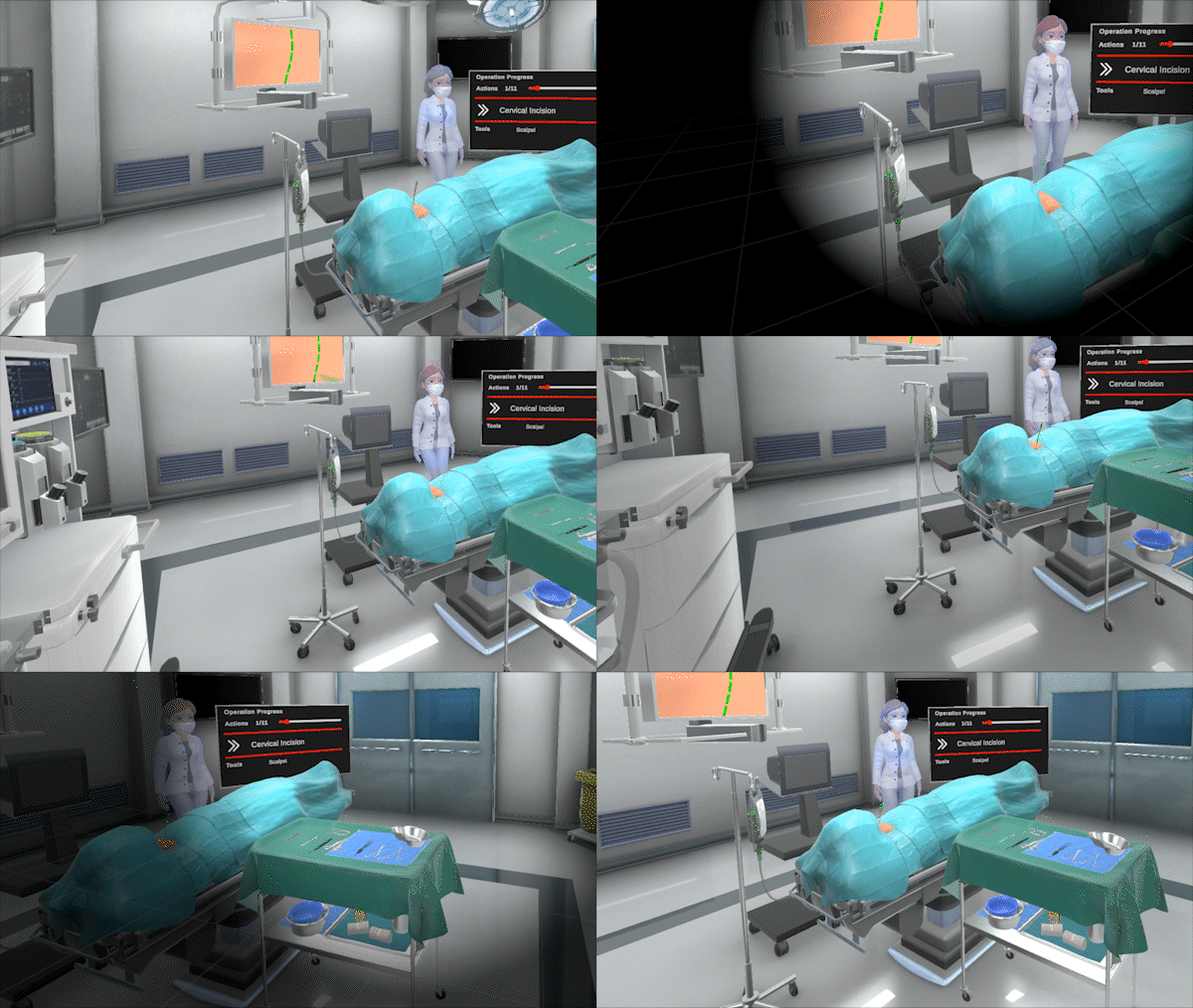
The vignette and its floor grid while moving through a scene.
A comfort effect that narrows the user’s field of view with a soft vignette while the rig is being moved or turned by a locomotion provider, to reduce motion sickness.
It reacts to every locomotion provider of its Locomotion System that reports a locomotion phase for at least the Minimum Duration, so it works with any combination of the Smooth Movement Provider, the Smooth Turn Provider or your own providers, without any of them knowing about it. Locomotions that are over in an instant, like the ones of the Snap Turn Provider, are ignored by default. Inside the vignette, a floor grid can be shown to help the user see how they move, like the comfort mode of Google Earth VR. By default it is anchored to the world, so it scrolls and turns past the user like real ground; it can also be anchored to the play area instead, so it stays still while the world moves past. Everything it needs to render is created at runtime as a hidden child of the rig’s head camera and is only drawn by that camera, so no extra scene setup is required.
Note
With Automatic Player Rig Setup, the vignette is added to the player rig by enabling Use Locomotion Vignette in the Locomotion Settings of the Interaction System module (off by default), where its defaults are adjusted too. It is then only active with XR (spatial) devices.
Here is a list of the options:
Name |
Explanation |
|---|---|
Locomotion System |
The locomotion system whose providers trigger the vignette. If left empty, every active provider triggers it. |
Settings |
The default look and timing of the vignette, used for every provider without an override (see below). |
Provider Overrides |
Providers that use their own settings, or that should not trigger the vignette at all. When several providers move the rig at the same time, the one with the smallest aperture wins. |
Material |
The material the vignette is drawn with. Leave empty to use the default one that ships with the SDK. |
The settings, whether default or per provider, are:
Name |
Explanation |
|---|---|
Aperture Angle |
The angle in degrees, measured from the view direction, that is left completely clear. Smaller values narrow the field of view more. |
Feathering Angle |
The angle in degrees over which the vignette fades from clear to fully opaque, starting at the aperture angle. |
Color |
The color of the vignette. The alpha channel is its maximum opacity. |
Show Grid |
Draws a floor grid inside the vignette, to help the user see how they move. |
Grid Anchor |
What the grid is anchored to. World (default): fixed to the world, it scrolls and turns past the user like real ground. Play Area: fixed to the play area, it stays still while the world moves, like the floor of the physical room. |
Floor Offset |
The height of the grid’s floor plane, in meters, above the floor of the space it is anchored to: world height 0 when anchored to the world, the play area floor when anchored to the play area. |
Grid Color |
The color of the grid lines. The alpha channel is their opacity. |
Grid Size |
The size of a grid cell, in meters of the space the grid is anchored to. |
Grid Distance |
The distance from the user, in meters of the space the grid is anchored to, over which the grid fades out. |
Minimum Duration |
The time in seconds a locomotion has to last before the vignette reacts to it. Locomotions shorter than this, like snap turns, are ignored. |
Fade In Time |
The time in seconds the vignette takes to appear once it reacts to a locomotion. |
Fade Out Time |
The time in seconds the vignette takes to disappear once a locomotion ends. |
Fade Out Delay |
The time in seconds the vignette stays visible after a locomotion ends, before it starts to disappear. |
Hint
The vignette can also be triggered from code, e.g. to accompany a teleport, by calling Pulse() on the LocomotionVignette component.